Showing posts with label password. Show all posts
Showing posts with label password. Show all posts
Thursday, March 23, 2017
Setting Password Browsing Lebih Mudah Dan Lebih Aman
Setting Password Browsing Lebih Mudah Dan Lebih Aman
Punya akun dan kata sandi/password online di berbagai media online memang kadang membuat kita jenuh mengingat satu persatu, karena saking banyaknya yang diikuti, apalagi ketika PC harus dilakukan install ulang dan belum sempat memback up akun dan password anda (jika anda kebetulan menyimpan otomatis di browser anda). tidak perlu kawatir lagi, saya akan berbagi kepada anda semua dengan software yang bernama lastpass.

Apa LastPass?
LastPass adalah penata kata sandi yang membuat browsing lebih mudah dan lebih aman.
Kelebihan :
- LEBIH MUDAH
Tidak akan lupa kata sandi lagi dan masuk ke situs Anda hanya dengan satu klik. - DI MANAPUN
Secara otomatis mensinkronisasikan data Anda, mengaksesnya dari mana saja kapan saja. - LEBIH MELINDUNGI
Melindungi diri anda dari penipuan phishing, penipuan online, dan malware. - AMAN
Semua data Anda dienkripsi secara lokal pada PC Anda - hanya ANDA yang dapat membukanya. - GRATIS
- MULTI PLATFORM
bisa berjalan di platform Mac, Windows, ataupun Linux
Apakah Anda memiliki situs yang tidak menawarkan untuk menyimpan ketika Anda login? Ini adalah solusi untuk menyimpannya lihatlah video dibawah ini :
Download : https://lastpass.com/misc_download.php
Available link for download

Saturday, March 4, 2017
Password Deep Freeze Lupa
Password Deep Freeze Lupa
Lupa Password Deep Freeze?
Jangan Kuatir,,, Gunakan ADF (Anti Deep Freeze)
Silahkan Download dulu disini :

Setelah Sahabat download, Langkah-langkahnya sebagai berikut :


Sumber : the--dot--blog.blogspot.com
Jangan Kuatir,,, Gunakan ADF (Anti Deep Freeze)
Silahkan Download dulu disini :
Setelah Sahabat download, Langkah-langkahnya sebagai berikut :

- Extact File tersebut sehingga menghasilkan 2 buah file yaitu Anti Deep Freeze.png dan ADF 0.1.exe
- Untuk mematikan Deep Freeze yang lupa passwordnya anda Klik 2 pada ADF 0.1.exe (tampilan seperti gambar disamping) Dan pada taksbar akan tampil kepala Panda baru seperti gambar di bawahnya.
- Beri centang pada pilihan Select your version sesuai dengan versi Deep Freeze sahabat.
- Klik 2 kali kepala panda baru diikuti dengan menekan tombol Shift (Shift+Klik2x)
- Biarkan kolom password kosong kemudian pilih OK.
- Untuk mengganti password yang lama dengan password baru pilih tab password dan pada Change Password masukkan password baru.
- Untuk melihat hasilnya Pilih Appl and Reboot
Sumber : the--dot--blog.blogspot.com
Available link for download
Sunday, February 26, 2017
Reset windows user password without prompted for the old one
Reset windows user password without prompted for the old one

Enter in Command Prompt: Press Win Key+R and type “cmd” and hit enter to open a command prompt.
In the command prompt type “net user” and hit enter. This command will show all the users account of the computer.
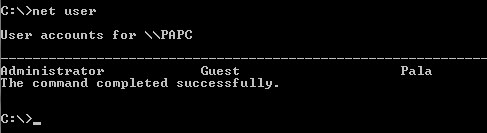
Changing the Password: if you want to change a user password (ex. Guest user account )
type net user guest * and hit enterUpon hitting the Enter key you will be prompted to enter a password for the user account. Note that the asterisk(*****) is not visible here. Put you password and hit “Enter“. You have to retype the password again for confirmation.
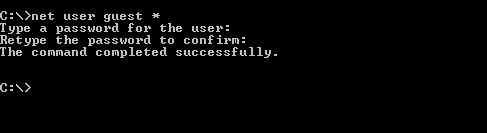
and you are done! You have successfully reset the password without knowing the older password.
Note: You need to have an Administrator privilege for this trick to work!
Available link for download
Monday, January 23, 2017
Reset Password Windows XP 7 Melalui Safe Mode
Reset Password Windows XP 7 Melalui Safe Mode
Ada Berbagai Cara untuk melakukan reseter password Windows, Disini saya akan menjelaskan bagaimana cara mereset password windows melalui safe mode.
Oke, langsung saja kalian ikuti langkah-langkah dibawah ini :
- Masuk Safe Mode dulu tentunya
- Restart dulu PC / Laptop / Notebook kalian
- Setelah udah layarnya mati , langsung buru2 tekan f8 atau f5 (fungsi ini terkadang berbeda setiap merk dari PC / Laptop nya)
- Lalu akan muncul tampilihan, pilih "safe mode" (seperti yang terlihat pada gambar dibawah ini)
- Tunggu hingga Tampil Log on Screen nya...
Nah... Kalau sudahtampil Log on Screen, Biasanya akan terdapat User tambahan yaitu "Administrator"
Langkah Untuk Menghapus Paswordnya :
- Log in Sebagai Administrator
- Pilih "Start"
- Lalu pilih "control panel"
- Lalu pilih "user accounts"
- Pilih accounts yang berpassword,
- pilih remove password
Selesai, restart komputer kamu
Jika Langkah Diatas Tidak Bisa Kalian Lakukan,Berarti harus menggunakan Cara Yang Lain..
ada beberapa Tips untuk mereset pasword Windows, Pilih aja Link di bawah ini :
ada beberapa Tips untuk mereset pasword Windows, Pilih aja Link di bawah ini :
- Reset password Windows 7 dengan win life cd / usb
- Reset Password Windows 7 dengan menggunakan Hiren Boot CD 15.2
Available link for download
Friday, December 30, 2016
Password Manager App eWallet Go Gets Cheaper
Password Manager App eWallet Go Gets Cheaper

Read more »
Available link for download
Friday, September 30, 2016
Reset BIOS Password Without Taking Out CMOS Battery
Reset BIOS Password Without Taking Out CMOS Battery

Two popular ways to reset BIOS & BIOS password are using the BIOS reset jumper and taking out CMOS battery for more than 15 minutes. Sometimes, taking out CMOS battery form the motherboard to reset BIOS might not be the solution for you, especially when it is a laptop system.
CMOS De-Animator is a software based solution that allows you to clear and reset your system’s BIOS configuration, thus clearing the BIOS password. The software is very useful since you don’t have to open the computer casing to look for BIOS reset jumper or the CMOS battery. The only downside of CMOS De-Animator is you will need to be able to boot to Windows with administrative right.
If you can Boot into Windows...
All you need to do is run the tool as administrator (right click -> “Run as administrator”) and click the Proceed button followed by restarting the computer. When your computer boots up, you should see a CMOS checksum error where it allows you to access the BIOS without a password. CMOS De-Animator works by invalidating the checksum of your system’s CMOS memory which resets all settings to default and clears any stored BIOS passwords upon reboot.
Download Here
Available link for download
Subscribe to:
Posts (Atom)