Showing posts with label without. Show all posts
Showing posts with label without. Show all posts
Sunday, February 26, 2017
Reset windows user password without prompted for the old one
Reset windows user password without prompted for the old one

Enter in Command Prompt: Press Win Key+R and type “cmd” and hit enter to open a command prompt.
In the command prompt type “net user” and hit enter. This command will show all the users account of the computer.
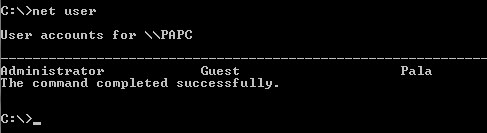
Changing the Password: if you want to change a user password (ex. Guest user account )
type net user guest * and hit enterUpon hitting the Enter key you will be prompted to enter a password for the user account. Note that the asterisk(*****) is not visible here. Put you password and hit “Enter“. You have to retype the password again for confirmation.

and you are done! You have successfully reset the password without knowing the older password.
Note: You need to have an Administrator privilege for this trick to work!
Available link for download

Monday, January 2, 2017
Shortcut Icon without Texts
Shortcut Icon without Texts
If you see the desktop of your computer, there are several shortcut icons with texts below them. The texts are usually the names of the programs.
Now we are going to omit the texts. Follow these steps:
Now we are going to omit the texts. Follow these steps:
- Click the shortcut icon.
- Press F2 button.
- Erase the texts.
- Press Alt button and type 0160 on the numlock.
Available link for download
Tuesday, November 15, 2016
Reset Epson T50 and T60 Without Error 21000068
Reset Epson T50 and T60 Without Error 21000068
Get an error 21000068 when resetting your Epson T50 or T60 and not see any solution to prevent the problem. Why not try this tip. But this method not recommended for beginner user and you must understand what you are doing.
Here the reset method Epson T50 and T60 without error 21000068 :
Here the reset method Epson T50 and T60 without error 21000068 :
- Turn off printer and open printer.
- Open your Epson main PCB board. You can view an 8 pin CMOS IC. That is Epson waste ink counter IC and found on all Epson Printer.
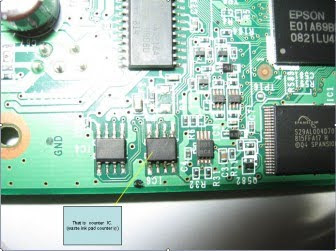
- You can reset your printer without any resetter by following these ways.
- Soldering pin no 1,2,3,4 by wire as show in PICTURE and now turn on printer for ”20 second”
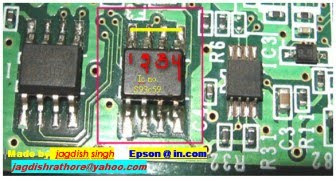
- After 20 second turn off printer and remove soldering wire from pin no. 1,2,3,4 ( back in original condition)
- Now turn on your printer
- And now your printer will be RESET
Note : This method is not recommended for beginners so you have to understand what you are doing. All problem caused by this tutorials is not our responsibility. Use this tutorial as your own risk.
Available link for download
Friday, September 30, 2016
Reset BIOS Password Without Taking Out CMOS Battery
Reset BIOS Password Without Taking Out CMOS Battery

Two popular ways to reset BIOS & BIOS password are using the BIOS reset jumper and taking out CMOS battery for more than 15 minutes. Sometimes, taking out CMOS battery form the motherboard to reset BIOS might not be the solution for you, especially when it is a laptop system.
CMOS De-Animator is a software based solution that allows you to clear and reset your system’s BIOS configuration, thus clearing the BIOS password. The software is very useful since you don’t have to open the computer casing to look for BIOS reset jumper or the CMOS battery. The only downside of CMOS De-Animator is you will need to be able to boot to Windows with administrative right.
If you can Boot into Windows...
All you need to do is run the tool as administrator (right click -> “Run as administrator”) and click the Proceed button followed by restarting the computer. When your computer boots up, you should see a CMOS checksum error where it allows you to access the BIOS without a password. CMOS De-Animator works by invalidating the checksum of your system’s CMOS memory which resets all settings to default and clears any stored BIOS passwords upon reboot.
Download Here
Available link for download
Subscribe to:
Posts (Atom)