Saturday, February 25, 2017
Print Spooler Error 1068 in Canon Printer The dependency service or group failed to start
Print Spooler Error 1068 in Canon Printer The dependency service or group failed to start
Depending on your environment and your type of printer installed, your Print Spooler Service will have other dependent services that must be running before the Print Spooler Service will start. If the dependent services are not running, you will see an error 1068 or similar message about dependent services when trying to start the Print Spooler Service.
Some canon printers will add their own services to XP and the starting of the Print Spooler Service lists them as dependencies and therefore those canon Services must be running before the Print Spooler service will start. It may be listed as the LexBce Server.
Do you now or have you ever had have any canon printers installed? If yes, are you still using the canon printers?
Depending on your printing environment, if you are using another kind of printer, you may have other Service listed in the Dependencies tab of the Print Spooler Service.
Use the XP Services Applet to check the Print Spooler dependencies and options.
Click Start, Run and in the box enter:
services.msc
Click OK to open the Service Applet.
Locate the Print Spooler Service, right click it, choose Properties and then look at the Dependencies tab. The services listed there must be running before the Print Spooler Service will start. If they are not running, you will get an error 1068 or similar message about dependent services when trying to start the Print Spooler Service.
You should always see the Remote Procedure Call (RPC) service and maybe some others depending on the type of printer you have installed (canon printers can add some Dependency Services to your XP configuration). All dependent services must be running before the Print Spooler Service will start.
The RPC service is also necessary for a lot of other things to work properly and is usually always running and set to Automatic start.
From the Services Applet, locate the Remote Procedure Call (RPC) service and if it is not running, right click it and start it and set it to Automatic.
Available link for download

Friday, February 10, 2017
Resetter Canon mp198 error E27 Ink Absorber is Full
Resetter Canon mp198 error E27 Ink Absorber is Full
- The printer is turned off and plugged the power cord.
- Press and hold STOP / RESET then press and hold POWER.
- Release the button STOP / RESET (do not release the POWER button)
- Press the STOP / RESET 2 (two) times, then release the POWER button
- Let the green light blink / kelip2x until the printer head stops moving. And LED panel shows the number zero.
- The computer will detect new hardware, ignore it .....
- This situation is shown in a state mp198 printer SERVICE MODE and ready to be reset.
- File Exctract Resetter mp198.
- 2 Prepare a paper in the printer (to print at the time of the reset)
- Run the program Resetter mp198.
 Available link for download
Tuesday, January 31, 2017
Reset error E08 untuk printer Canon MP258
Reset error E08 untuk printer Canon MP258
E08 adalah error yang disebabkan limit print dari head sudah mencapai 2000 lembar, yang biasanya printer minta di reset…
berikut ada langkah2 nya
Cara 1 :
1. Printer dalam keadaan mati dan kabel listrik terpasang.
2. Tekan Tombol STOP/RESET dan tahan, kemudian tekan tombol POWER dan tahan.
3. Tombol POWER masih ditekan, lepas tombol STOP/RESET, kemudian tekan tombol STOP/RESET 2 x dalam keadaan tombol power masih ditekan.
4. Lepas kedua tombol secara bersamaan.
5. Printer akan berproses beberapa saat (agak lama), kemudian LCD Panel akan menunjukkan angka NOL (0)
6. Komputer akan mendeteksi DEVICE BARU, Abaikan saja …..
7. Keadaan ini menunjukkan printer MP258 dalam keadaan SERVICE MODE dan siap direset.
Kemudian download software nya disini DI SINI
1. Exctract File Resetter MP258.
2. Siapkan 2 kertas di printer (ini untuk print pada waktu proses reset)
3. Jalankan program Resetter MP258.

Klik “MAIN”, maka printer akan berproses, kemudian MP258 akan print satu halaman dengan tulisan ” D=000.0 “
Klik ” EEPROM Clear “.
Kemudian klik ” EEPROM “, dan printer akan print hasil Resetter MP258. Salah satu barisnya adalah sebagai berikut : “TPAGE(TTL=00000 COPY=00000)”
Matikan Printer dengan menekan tombol POWER.
Selesai…….
Available link for download
Thursday, January 19, 2017
Perbaiki Canon IP7270 Ink run out error 1600
Perbaiki Canon IP7270 Ink run out error 1600

Printer Canon IP7270 ini hanya memiliki fitur cetak namun kecanggihan atau kelebihan lain adalah memakai wifi, jadi bisa print jarak jauh.
Orang yang awam biasanya tidak tau bagaimana cara mengatasi permaslahannya saat printernya ada error.
berikut akan saya jelaskan beberapa permasalahan pada printer ini.
CARA MENGATASI MASALAH PRINTER BERKEDIP ORANGE DAN TERDAPAT PERINGATAN SUPPORT KODE : 1600?
Berikut langkah-langkahnya :
- Baca peringatan yang muncul pada layar monitor anda, pastikan code errornya adalah 1600 seperti gambar dibawah ini.
Peringatan Ink Run Out Canon IP7270.
- Tekan Tombol Resume yang berkedip merah pada Printer selama kurang lebih 5 Detik sampai lampu orange tidak berkedip kembali.
- Bila masih berkedip kembali, buka cover atas agar cartridge ketengah.
- Lepas dan pasang kembali sampai lampu warna cartridge berkedip rata, kemudian tutup cover atas.
- Maka akan muncul kode error 1600 kembali kemudian tekan tombol RESUME/STOP sampai lampu kedip orange hilang.
- Setelah itu tunggu hingga proses selesai pada Printer, dan Printer siap digunakan.
- Coba matikan dan nyalakan kembali. bila masih kedip maka ulangi cara sebelumnya.
Oke printer siap digunakan.
Untuk Ink pad is Full bisa baca disini.
Terimakasih telah berkunjung keblog saya.
jangan lupa komentarnya ya.
Selain Service saya juga jual buku Yasin dan Undangan Murah dan Bermanfaat.
klik aja Bisnis Pemuda Surabaya
Available link for download
Monday, January 2, 2017
Reset Error Code 6502 – Cannon MP620
Reset Error Code 6502 – Cannon MP620
How to RESET the Error code “6502”
1 – Unplug your printer, pausing for effect.
2 – Plug the printer back in and then:
2a – Press AND HOLD the Power button
2b – Press the Stop button twice
2c – Release the Power button
2d – Press the Stop button a further four times (see notes)
notes:
- someone reported you may hear beeping, I did not
- I think the four button press of the stop AFTER releasing the Power button may not be required since once the powerbutton was released, the system immediately went into a startup routine, it didn’t appear to wait for the stop buttons. But who knows, it was there, I did it, and it worked
If you are Facing More Problems Please Contact Canon 855-517-2433.
Available link for download
Sunday, December 25, 2016
Reset Full Error Canon IP1300 dan IP1700
Reset Full Error Canon IP1300 dan IP1700
Reset Ink Tank Full Error Canon IP1300 dan IP1700
1. Turn off printer
2. Hold down Resume button and press Power button.
3. Keep holding down Power button and let Resume button go.
4. Press Resume button 2 times then let BOTH buttons go.
5. Green lights will flash and then stop blinking.
6. When green lights are solid, press the Resume button 4 times.
7. Press the Power button and the printer should turn off, if not,
press the Power button once more.
8. Your printer should respond as normal.
Download Reset : Download
Available link for download
Saturday, December 24, 2016
Reset Printer Canon IP2770 Error 5B00 Waste Ink Tank Absorber Full
Reset Printer Canon IP2770 Error 5B00 Waste Ink Tank Absorber Full

.png)
.png)
.png)


1. bila masih tidak bisa bekerja software tersebut secara normal, pakai resetter terbaru disini kemudian jalankan Service Tool 3400.
3. Dikolom Ink absorber counter pilih Main kemudian klik SET di sebelah kanannya.
4. Dikolom Print klik EEPROM. Maka akan mencetak 1 halaman.
5. Coba matikan printer lalu nyalakan kembali.
Selamat printer anda sudah bisa digunakan kembali...
Download DRIVER Canon IP2770 disini.
Note :Bila software bekerja tetapi masih blink / software tidak bekerja maka ulangi mereset printer secara manual dilanjutkan mereset kembali.
Ingin simpan Tutorialnya?klik disini.
Terimakasih telah berkunjung keblog saya.
jangan lupa komentarnya ya.
Butuh Service Printer di Surabaya?di BAYUIDOCOM saja.
aman dan bergaransi.
Available link for download
Tuesday, December 20, 2016
RESETTERMP258 error 5B00 or error P07
RESETTERMP258 error 5B00 or error P07

Resetter Canon MP258 way or P07 error 5B00:
I. Enter service mode
1. Turned off the printer and plugged the power cord.
2. Press the STOP / RESET and hold, then press and hold the POWER button.
3. Release the button STOP / RESET, then press the STOP / RESET 2 times
4. Release the POWER button
5. Wait until the LCD panel will show the number zero (0)
6. To be continue II
II. Program resetter
1. Download Service tool Mp258 Extract File
2.Run this program ( double click )
note
1. Previous input two sheets of paper into the printer feedpaper
2. Click on Main (1) the printer will print D = 000.0
Available link for download
Tuesday, November 15, 2016
Reset Epson T50 and T60 Without Error 21000068
Reset Epson T50 and T60 Without Error 21000068
Here the reset method Epson T50 and T60 without error 21000068 :
- Turn off printer and open printer.
- Open your Epson main PCB board. You can view an 8 pin CMOS IC. That is Epson waste ink counter IC and found on all Epson Printer.
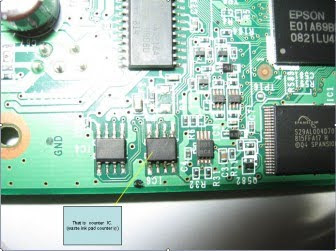
- You can reset your printer without any resetter by following these ways.
- Soldering pin no 1,2,3,4 by wire as show in PICTURE and now turn on printer for ”20 second”
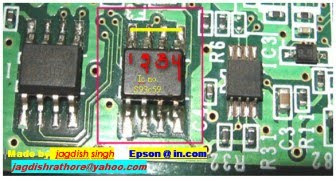
- After 20 second turn off printer and remove soldering wire from pin no. 1,2,3,4 ( back in original condition)
- Now turn on your printer
- And now your printer will be RESET
Note : This method is not recommended for beginners so you have to understand what you are doing. All problem caused by this tutorials is not our responsibility. Use this tutorial as your own risk.
Available link for download
Service Error Message 5C00 Canon iP90
Service Error Message 5C00 Canon iP90

Available link for download
Wednesday, November 9, 2016
Printer Canon IP2770 Error 5200
Printer Canon IP2770 Error 5200

For error 5200 Printer Canon IP 2770/2700 is the same as I fix Error 5B00 above but for this error problem you just need the first step Error 5B00 following:
1. Make sure that the printer Canon IP 2770 / IP 2700 is turned off (Off) But the power cable
(power) installed.
2. Press the RESUME button for about 2 seconds
3. After that you press the POWER button until the green light on (when pressing the POWER button,
Resume button not released yet)
4. Then release the RESUME button, but do not release the POWER button.
5. POWER button while still depressed, press the Resume button 5 times. Led will light turns green to
orange last flame orange. (not to be mistaken 4x because the printer will die in total, but also temporary)
while reading the writing on the nature of the above.
6. Release both buttons simultaneously.
7. LED will blink briefly then will flash GREEN.
8. The computer will detect the new device, just ignore it
9. Press the Power button so that the printer OFF / Off
10. Once the printer is completely dead then press the Power Button Back then the computer will turn on
and be ready for use again.
Available link for download
Sunday, October 30, 2016
Printer Xerox Phaser 7700 error codes
Printer Xerox Phaser 7700 error codes

Autorun and autorun.inf virus is a new kind of virus/trojan, most of common antivirus products such as Kaspersky, Nod32, Avast, AVG can do little about this kind of virus/trojan.
Autorun Virus Remover uses proactive technology to permanently remove autorunand autorun.inf viruses, also it can block any autorun/autorun.inf viruses trying to infect the system via USB drives(pendrive, external hard disk, iPod, etc). What you need to do is just clicking the scan button of Autorun Virus Remover.
FEATURES :
* Remove autorun and autorun.inf easily and quickly
* Prevent viruses infecting computer from USB Devices
* Prevent Data leakage via USB removalbe devices
* 100% compatible with other antiviruses
* The nest solution to protect your PC
* Faster and Smallest antivirus software
SUPPORTED USB and MEDIA :
* Pen drives
* USB sticks
* USB Flash cards
* USB MP3 players
* USB Audio players
* External hard drives
* Pocket PCs
* Mobile phones
* iPods and iPhones
* Other USB mass storage enabled devices
Hotfile
Available link for download