Showing posts with label cartridges. Show all posts
Showing posts with label cartridges. Show all posts
Sunday, March 12, 2017
Wednesday, December 21, 2016
Reset the ink level for Cartridges HP 21 HP 27 HP 818 HP 802 HP 56 HP 58 HP 22 HP28 and HP 57
Reset the ink level for Cartridges HP 21 HP 27 HP 818 HP 802 HP 56 HP 58 HP 22 HP28 and HP 57
Reset the ink level for Cartridges HP 21, HP 27,HP 818,HP 802, HP 56, HP 58, HP 22, HP28 and HP 57
The Steps to Reset Ink level Printer cartridges HP 21, HP 27,HP 818,HP 802, HP 56, HP 58, HP 22, HP28 and HP 57

Step1:
Turn your computer OFF and then remove cartridge from the printer.

Step3:
Place a piece of tape over the top left contact of the circuit as shown in BLUE on the picture.
Step4:
Turn on the printer. Printer will automatically print test page. (Note:if printer does not print a test page but goes through a head movement printer initialising process continue following steps when initializing process ends.
Step5:
Remove the cartridge from printer.
Step6:
Place a piece of tape over top right contact of the circuit as shown in RED on the picture.
Step7:
Replace cartridge to printer. Printer will go through a series of tests. initializing process.
Step8:
Remove cartridge from the printer.
Step9:
Place a piece of tape over the two contacts on the right side of the cartridge circuit as shown in
GREEN on the picture.
Step10:
Replace cartridge to printer. Printer will run additional tests and be quite audible.(Ink levels will display “printer busy message” at this point)
Step11:
Remove cartridge from printer and remove all tape from the cartridge.
Step12:
Reinstall cartridge. (Ink levels will display “printer busy message” at this point)
Step13:
Turn printer off. Wait for 60 seconds and turn the printer back on. Ink level should now read full.
Refilling Instruction:
When You Refill the cartridge maintain the correct amount of liquid Ink So that the cartridge dont leaks.
For BLACK Printer cartridges HP 21, HP 27, HP 56, HP 818, HP 802 - 5ml
For tricolor Printer cartridges HP 22, HP 28, HP 58, HP 818, HP 802 - 2ml each
Note:Do Not overload ink it will cause leak, consider low quantity ink refill for each refilling process.
Use not more then 5ml syringe with needle for best refills.
Available link for download

Friday, October 21, 2016
Friday, September 30, 2016
Reset Ink Level Canon MX300 Cartridges
Reset Ink Level Canon MX300 Cartridges
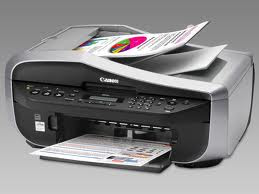
The Canon PIXMA MX300 is All-in-One Inkjet Printer designed for office uses. This canon printer combine scan, fax, copy, and print into one easy machine. Canon MX300 can scan vivid images with color resolutions up to 4800 x 1200 dpi. This all in one printer compatible with Windows Vista, Windows XP, Windows 2000, and Mac OS X 10.2.8 to 10.4.x8 operating systems and printer using PG-40 black cartridge and CL-41 color cartridge.
“solusi-printer.maherna.com” have not found the software resetter for Canon Pixma MX300 in internet but don’t worry if you have problem with this multifuction canon printer, you can reset it manually. This reset method is to reset ink level in Canon MX300 if your printer stop to print after refilling the cartridges. Update: severals readers say, this reset methods also work on Canon MX308.
Here the Solution to reset the ink level for Canon Pixma MX300 follow this steps to reset the ink level in your canon MX300.
1. Switch off the Canon MX300 and disconnect the power cable.
2. While press and hold the power button, Connect the power cable to electric socket.
3. While pressing the power button, press the “Cancel/Stop” button (red button).
4. Now release the power button and the printer turns into a kind of factory mode. Wait for 10 seconds until it says “idle”.
5. Press “>” (next button) once “Shipping Mode 3? then Press the “OK” button. Press “OK” again for “without cleaning”.
6. A test page will print.
7. Open the cover, like you are about to change the cartridges.
8. Disconnect the power cable again without switch off the printer.
9. Take out the both cartridges.
10. Close the cover.
11. Connect the power cable and turn on the printer.
12. Now just put the cartridges back and the ink level in the canon Pixma MX300 have full again.
Available link for download
Subscribe to:
Posts (Atom)